WhatsApp Status Photo Collage: Dimensions, Layouts, and Quick Workflow

Published on 2026-04-18 · Keyword: WhatsApp status photo collage
Want to create right now? Open the photo collage maker and follow this guide in parallel.

WhatsApp Status Photo Collage Guide

If you are searching for WhatsApp status photo collage, the biggest challenge is rarely the software button. The challenge is turning a random camera roll into a story that feels intentional. Most people upload photos, pick the first grid, and publish immediately, then wonder why the result looks cluttered. A stronger approach is to decide the purpose first, choose a layout that supports that purpose, and only then place the photos. This article gives you that practical system in plain language so you can make better collages in less time.

Collage tool screenshot

Before we dive in, open the tool in another tab: Photo Collage Maker. Reading and creating side-by-side will help you apply each step right away.

Start With Outcome, Not Upload

When creating around WhatsApp status photo collage, start by defining one outcome sentence: “I want viewers to feel ___ and do ___ after seeing this collage.” That simple sentence can dramatically improve your choices because it filters photos, text, and composition. If the outcome is celebration, lead with smiling faces and bright frames. If the outcome is memory recap, include one wide scene photo and several close details. If the outcome is announcement, leave visual breathing room and avoid overcrowding. Collages look professional when every element supports the same intent.

For daily status users and local businesses, this matters even more because attention is short and feeds move quickly. If your collage does not communicate the message within one second, people scroll. The first image block should act as a hook, the middle blocks should provide context, and the final block should close with emotion or clarity. This “hook-context-close” rhythm works in almost every format, whether you are posting to WhatsApp, Instagram, Facebook, or sending directly to family groups.

Photo Selection Framework That Saves Time

A common mistake is selecting photos based only on personal attachment. Emotional value is important, but visual balance is equally important if you want a collage that performs well and feels premium. Use this fast selection framework:

  1. Pick one anchor image with strong lighting.
  2. Add two supporting images with different framing (close + medium).
  3. Add one contrast image to avoid repetition.
  4. Keep background colors in the same visual family.
  5. Remove blurry or low-resolution files even if the memory is special.

With this method, you reduce decision fatigue and protect quality. The tool can arrange many images, but smart curation gives you a cleaner final result. For status publishing cycles, consider color harmony first. Seasonal moments often include intense colors, and without balance they can look noisy. Alternate bright and neutral photos so the collage stays readable on small screens.

Layout Strategy for Better Visual Hierarchy

Layout is not just style. It is a communication system. For WhatsApp status photo collage, choose a layout based on story complexity:

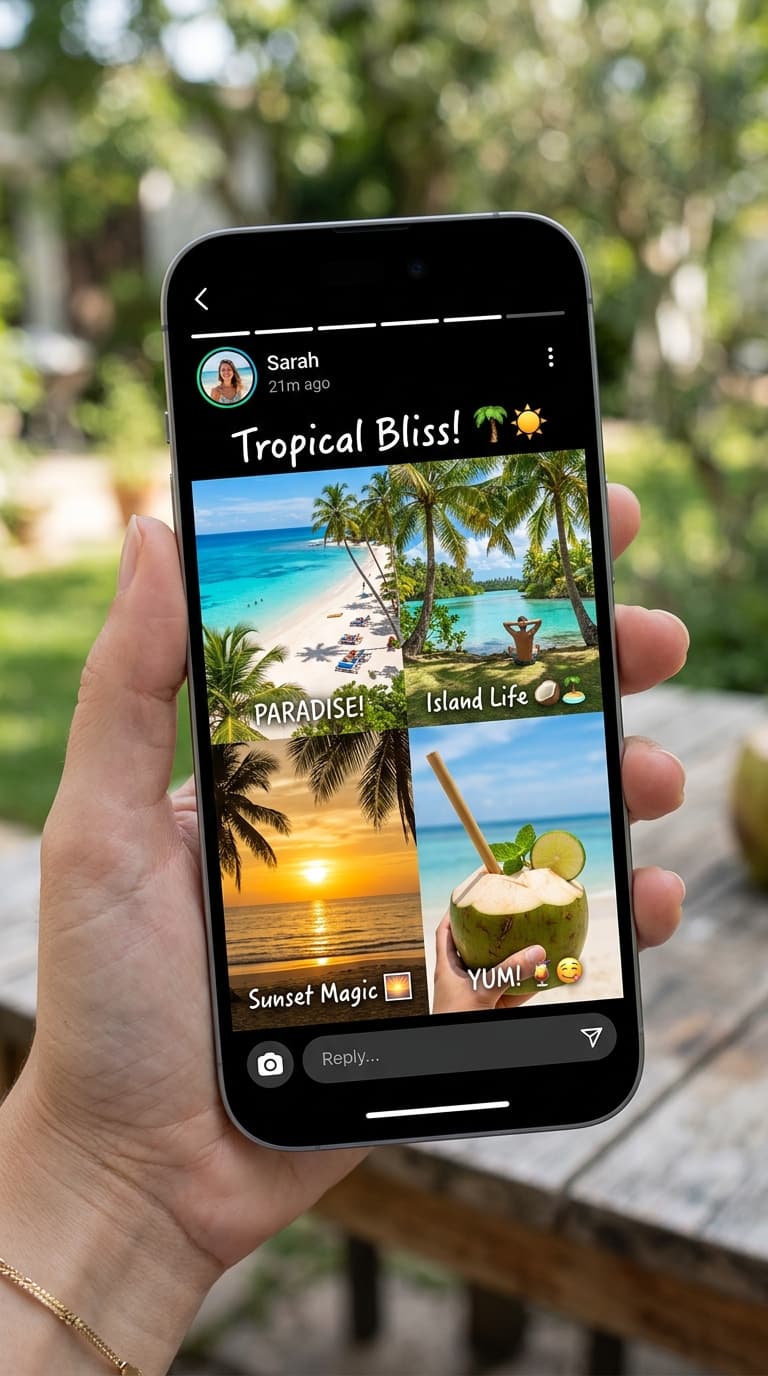
  • Use 2x2 when you need clarity, symmetry, and equal importance.
  • Use 3x3 when you need richer storytelling with many moments.
  • Use horizontal when you want timeline flow.
  • Use vertical when content is mobile-first and story-driven.

If the collage feels “off,” the problem is often hierarchy. Too many photos compete for attention. Solve this by reducing similar angles and giving one photo the emotional center position. In practical terms, place your strongest image in the top-left or center, depending on the layout style. Then build supporting blocks around that image. This keeps visual flow smooth and prevents the collage from feeling random.

Quality and Export Settings That Actually Matter

People ask for HD exports, but what they usually want is “crisp on phone and still usable for reposting.” You get that by controlling three inputs: source quality, compression pressure, and dimension fit for platform. Start with clear source images, avoid repeated screenshots, and keep color consistency. Then export once, preview on your own phone, and only re-export if tiny text or faces look soft.

For most use cases, a clean PNG export from the tool is enough. If your collage includes gradients or low-light photos, double-check blacks and shadows because compression can flatten detail. Also test readability in both light and dark mode environments since many social apps alter perceived contrast. This quick quality pass takes less than one minute and improves final perception significantly.

Mobile Workflow for Fast Publishing

Since most traffic comes from mobile users, your workflow should assume thumb-first interaction. Keep uploads in a dedicated album before starting. Name that album by event so you can reuse it for multiple variants without hunting photos repeatedly. Create version A with clean layout, version B with alternate order, and version C with tighter crop emphasis. Save all three, then choose based on where you are sharing.

This multi-variant approach sounds heavier than it is, but it is actually faster over time. One editing session gives you reusable assets for status, story, and feed. You avoid last-minute editing stress and maintain consistent style. For daily status users and local businesses, this consistency builds stronger recall because people begin to recognize your visual pattern.

Common Mistakes and Quick Fixes

Here are frequent mistakes people make with WhatsApp status photo collage and exactly how to fix them:

  1. Too many similar selfies: replace duplicates with one context image.
  2. Uneven lighting: reorder photos so bright and dark images alternate.
  3. Cropped faces near edges: shift subject away from frame boundaries.
  4. Random background colors: choose photos with compatible tone families.
  5. Overthinking perfection: publish a strong version, then iterate next time.

The goal is not pixel perfection. The goal is clear storytelling with confident composition. A collage that feels alive and coherent will always outperform a technically perfect but emotionally flat layout.

Practical CTA Workflow You Can Repeat Weekly

If you publish collages often, build a repeatable weekly template: choose your theme, shortlist photos, create one square version, create one status version, and save both with date-based naming. This system helps you scale content creation without burnout. It also helps teams and creators maintain brand consistency while moving quickly.

Open the editor here and apply this workflow now: Create your collage. If your use case is platform-specific, also test Instagram Collage Maker, WhatsApp Collage Maker, and 2x2 Collage Maker.

Related Reads

To continue improving, read these next:

FAQ

1) What is the fastest way to start with WhatsApp status photo collage?

Start with 4 to 6 photos, pick a clear layout, and export one clean version before creating alternates.

2) How many photos are ideal for quality?

For clarity on mobile, 4 to 9 photos is a good range. More images can reduce visual impact.

3) Can I create this without watermark and signup?

Yes, CollageMaker.in allows watermark-free creation and download without account creation.

4) Which layout is best for beginners?

2x2 is usually easiest because it keeps balance simple and forces strong photo selection discipline.

Final Checklist

Before publishing, run one final checklist: preview on your own phone, confirm faces are clear, verify colors are balanced, and test readability on both bright and dim screens. Then post, collect feedback, and save your best-performing layout as a reusable pattern for future collages.

Create Your Collage Now

Launch the free tool and turn your photos into a polished collage in under 2 minutes.

Open Tool